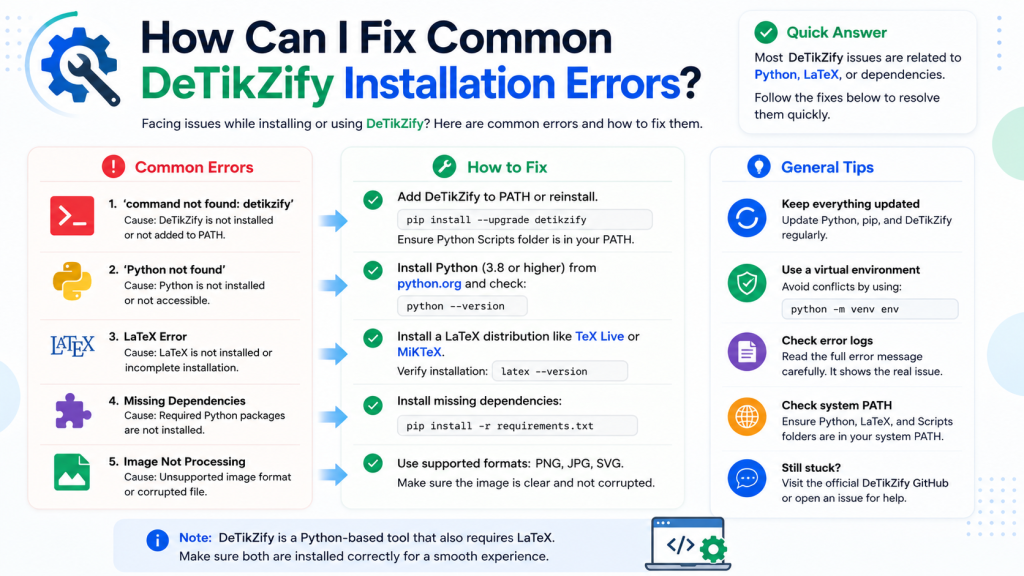
Installing DeTikZify is an exciting first step toward turning images and diagrams into editable TikZ code for LaTeX. However, like many AI-powered Python applications, the installation process doesn’t always go smoothly. You might run into errors related to Python versions, missing dependencies, package conflicts, or GPU configuration, especially if it’s your first time setting up a machine learning tool.
Fortunately, most of these issues are common and can be resolved with a few simple troubleshooting steps. In this guide, you’ll learn how to fix the most common DeTikZify installation errors, understand what causes them, and get the software running successfully on Windows, macOS, or Linux.
Read More: Which Operating Systems Does DeTikZify Support?
Why Does DeTikZify Installation Fail?
Installation errors generally occur because your system is missing a required dependency or is using an incompatible software version. Since DeTikZify relies on Python and machine learning libraries, even a small configuration issue can prevent it from installing correctly.
Common causes include:
- Unsupported Python versions
- Missing pip or virtual environment tools
- Outdated package managers
- Missing Git installation
- PyTorch compatibility issues
- CUDA or GPU configuration problems
- Internet connection interruptions during package downloads
Understanding the exact error message is the first step toward finding the correct solution.
1. “Python Is Not Recognized” Error
One of the most common installation problems appears when your terminal cannot find Python.
Why It Happens
Python is either not installed or hasn’t been added to your system’s PATH.
How to Fix It
- Install the latest stable version of Python.
- During installation on Windows, check the option to Add Python to PATH.
- Restart your terminal after installation.
- Verify the installation by running:
python --versionor
python3 --versionIf Python displays its version number, you’re ready to continue.
2. pip Command Not Found
If your terminal reports:
pip: command not foundor
No module named pipyour Python installation doesn’t include pip or it’s not configured correctly.
Solution
Upgrade or install pip using:
python -m ensurepip --upgradeThen update it:
python -m pip install --upgrade pipFinally, confirm that pip is working:
pip --version3. Virtual Environment Problems
Many users install DeTikZify inside a virtual environment to keep dependencies isolated.
Common Error
No module named venvFix
Create a new virtual environment:
python -m venv detikzify-envActivate it:
Windows
detikzify-env\Scripts\activatemacOS/Linux
source detikzify-env/bin/activateOnce activated, reinstall DeTikZify inside the environment.
4. Dependency Installation Failed
Sometimes pip cannot install required packages.
Typical messages include:
- Failed building wheel
- Could not build package
- Metadata generation failed
Solutions
- Upgrade pip.
- Upgrade setuptools.
- Upgrade wheel.
Run:
python -m pip install --upgrade pip setuptools wheelThen retry the installation.
5. Git Is Not Installed
Some installation methods download code directly from Git repositories.
If Git is missing, you’ll see errors similar to:
git is not recognizedSolution
Install Git for your operating system and restart the terminal.
Verify:
git --version6. PyTorch Installation Errors
Since DeTikZify relies on AI models, PyTorch compatibility is important.
Common Issues
- Torch not found
- CUDA mismatch
- Unsupported build
Fixes
- Install the correct PyTorch version for your operating system.
- Match CUDA versions if you’re using an NVIDIA GPU.
- If you don’t have a GPU, install the CPU version instead.
7. CUDA or GPU Errors
Users with NVIDIA graphics cards may encounter CUDA-related problems.
Examples include:
CUDA unavailableor
Torch CUDA not availableSolutions
- Update NVIDIA GPU drivers.
- Install the compatible CUDA Toolkit.
- Restart your computer.
- Verify GPU detection before running DeTikZify.
If you don’t need GPU acceleration, simply use the CPU version.
8. Permission Denied Errors
Linux and macOS users occasionally encounter permission-related issues.
Example:
Permission deniedFix
Avoid installing packages globally whenever possible.
Instead, use:
python -m pip install --useror install everything inside a virtual environment.
9. Internet Connection Problems
Large AI packages can fail to download because of unstable internet connections.
Tips
- Check your network connection.
- Retry the installation.
- Disable VPNs temporarily if they’re interrupting downloads.
- Update pip before trying again.
10. Outdated Python Version
Older Python releases may not support newer libraries used by DeTikZify.
Solution
Upgrade to a recent Python version recommended by the project’s documentation.
After upgrading:
python --versionThen reinstall the dependencies.
11. Package Version Conflicts
If you’ve installed many Python packages previously, dependency conflicts may occur.
Best Fix
Create a fresh virtual environment and perform a clean installation.
This avoids conflicts with existing machine learning libraries.
General Troubleshooting Tips
If you’re still facing installation issues, try these steps:
- Restart your computer.
- Update Python.
- Update pip.
- Update setuptools.
- Update wheel.
- Create a new virtual environment.
- Reinstall DeTikZify from scratch.
- Carefully read the full error message instead of only the last line.
- Check whether all required dependencies are installed.
A clean environment often resolves problems much faster than trying to repair an existing setup.
Conclusion
Most DeTikZify installation errors are caused by missing dependencies, outdated software, or configuration issues rather than problems with the application itself. By checking your Python version, updating pip, installing the required tools, and using a virtual environment, you can resolve most setup issues quickly and avoid future conflicts. If an error does occur, carefully reading the error message often points you in the right direction. Once DeTikZify is installed correctly, you can take full advantage of its AI-powered capabilities to convert images and diagrams into editable TikZ code, making your LaTeX workflow faster, easier, and more efficient.